Users
Users are the people who are able to log in to the application. They are associated with one or more sites. The roles users can take are: admin, facilitator, observer, and user.
Only admin users have the permission to create/edit users.
Below is a table of permissions for each role.
| Role | ADMIN | ADMIN | ADMIN | ADMIN | FACILITATOR | FACILITATOR | FACILITATOR | FACILITATOR | OBSERVER | OBSERVER | OBSERVER | OBSERVER | USER | USER | USER | USER |
| Permission | Create | Edit | View | Delete | Create | Edit | View | Delete | Create | Edit | View | Delete | Create | Edit | View | Delete |
| Curriculum (lessons,activities) | Y | Y | Y | Y | N | N | Y | N | N | N | Y | N | N | N | Y | N |
| Users (Roles - admin,facilitator,observer) | Y | Y | Y | Y | N | N | Y | N | N | N | Y | N | N | N | Y | N |
| Site | Y | Y | Y | Y | N | N | Y | N | N | N | Y | N | N | N | Y | N |
| Section | Y | Y | Y | Y | N | N | Y | N | N | N | Y | N | N | N | Y | N |
| Session (attendances) | Y | Y | Y | Y | Y | Y | Y | N | N | N | Y | N | N | N | Y | N |
| Participant | Y | Y | Y | Y | Y | Y | Y | N | N | N | Y | N | N | N | Y | N |
| Participant Enrollment | Y | Y | Y | Y | Y | Y | Y | Y | N | N | Y | N | N | N | Y | N |
| Report (section data tracker/upload) | Y | Y | Y | Y | N | N | Y | N | N | N | Y | N | N | N | Y | N |
| Forms | Y | Y | Y | Y | N | N | Y | N | N | N | Y | N | N | N | Y | N |
| Demographic Response | Y | Y | Y | Y | Y | Y | Y | N | N | N | Y | N | N | N | Y | N |
| Fidelity Response | Y | Y | Y | Y | Y | Y | Y | N | N | N | Y | N | N | N | Y | N |
| Observation Response | Y | Y | Y | Y | N | N | Y | N | Y | Y | Y | N | N | N | Y | N |
To create a user:
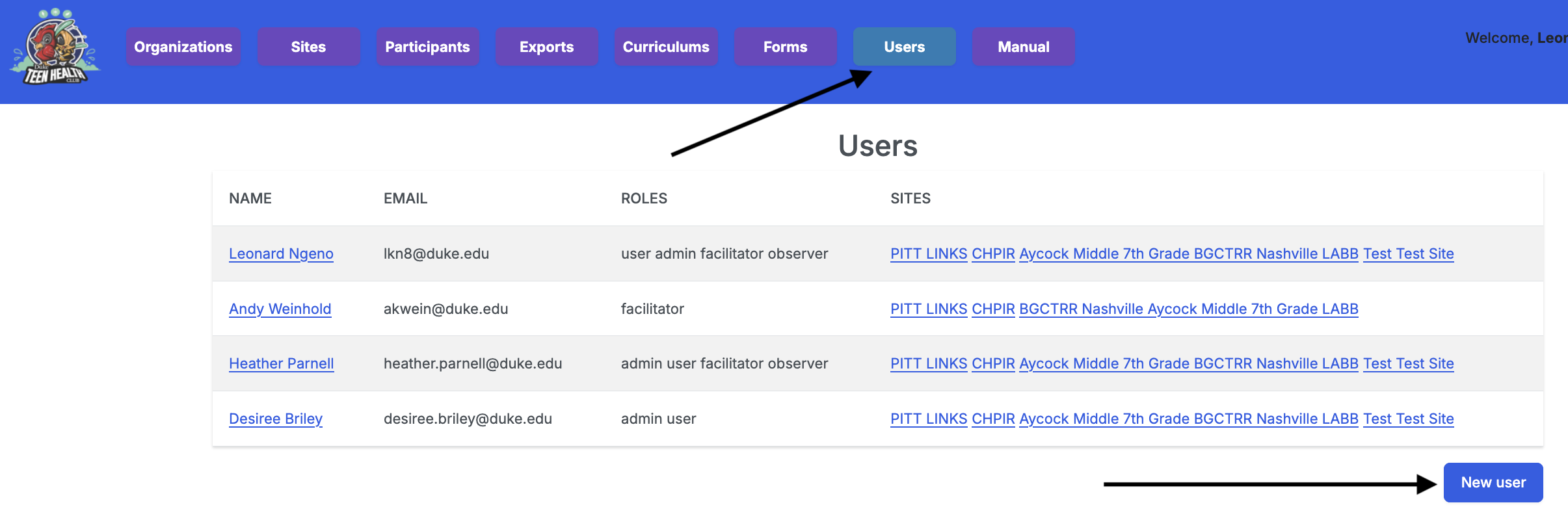
- Navigate to the Users page using the navigation tab.
- Click on the New user button located on the bottom right.
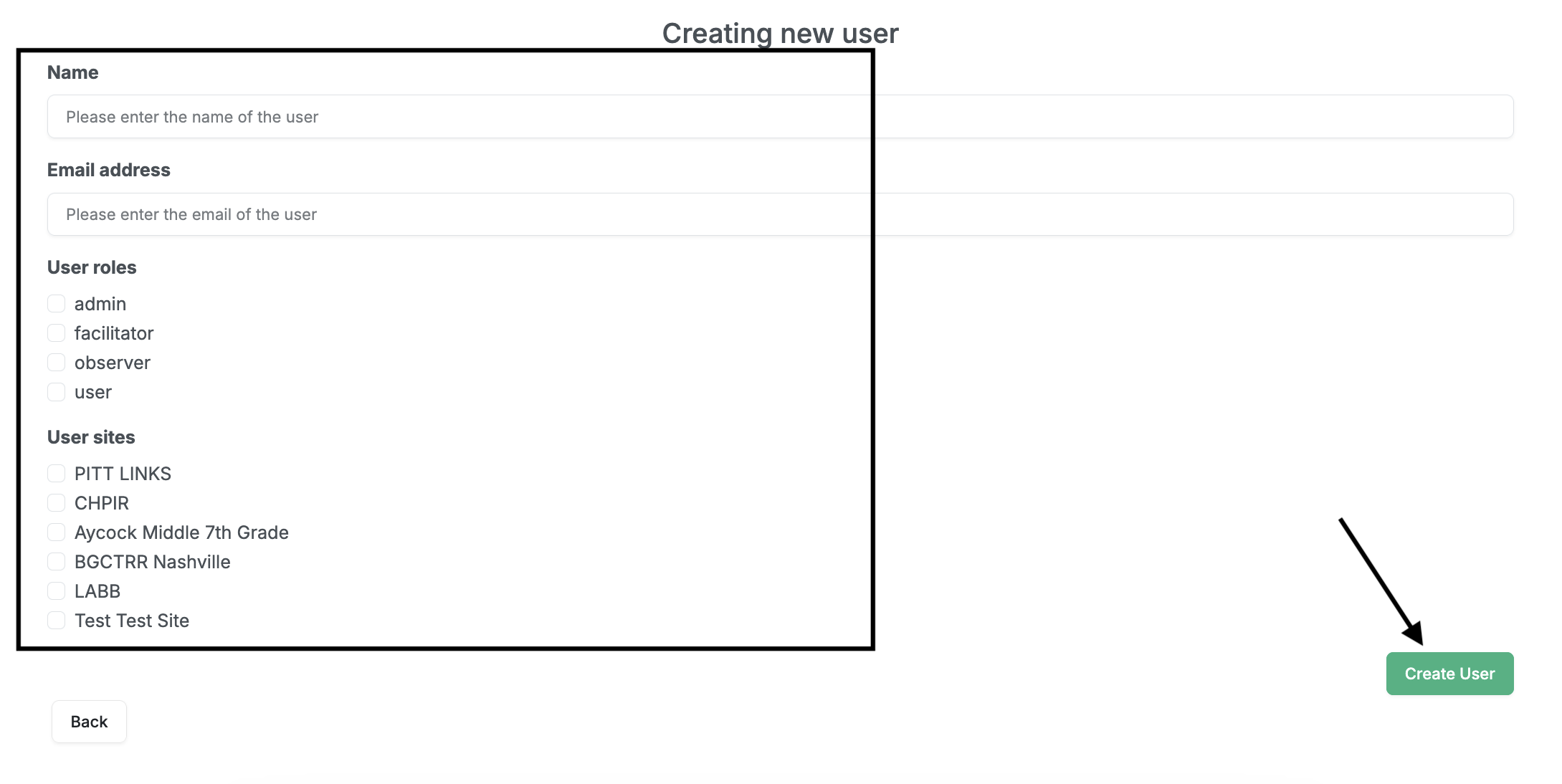
- Provide the user’s name, email, role, and site(s).
- Click the Create User button.
To update a user:
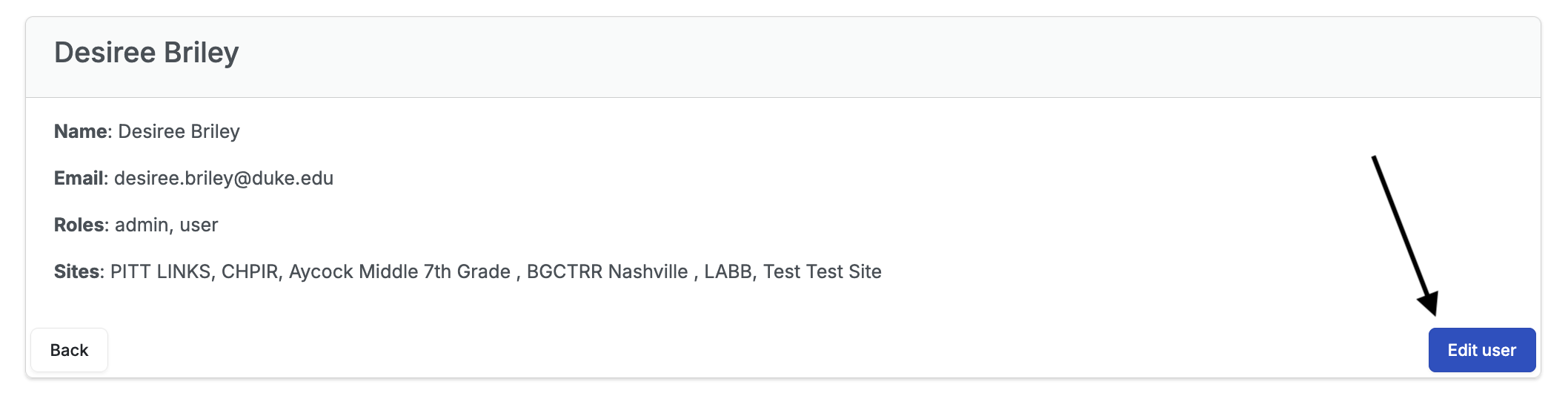
- To edit a user, click the Edit button on the user’s page.
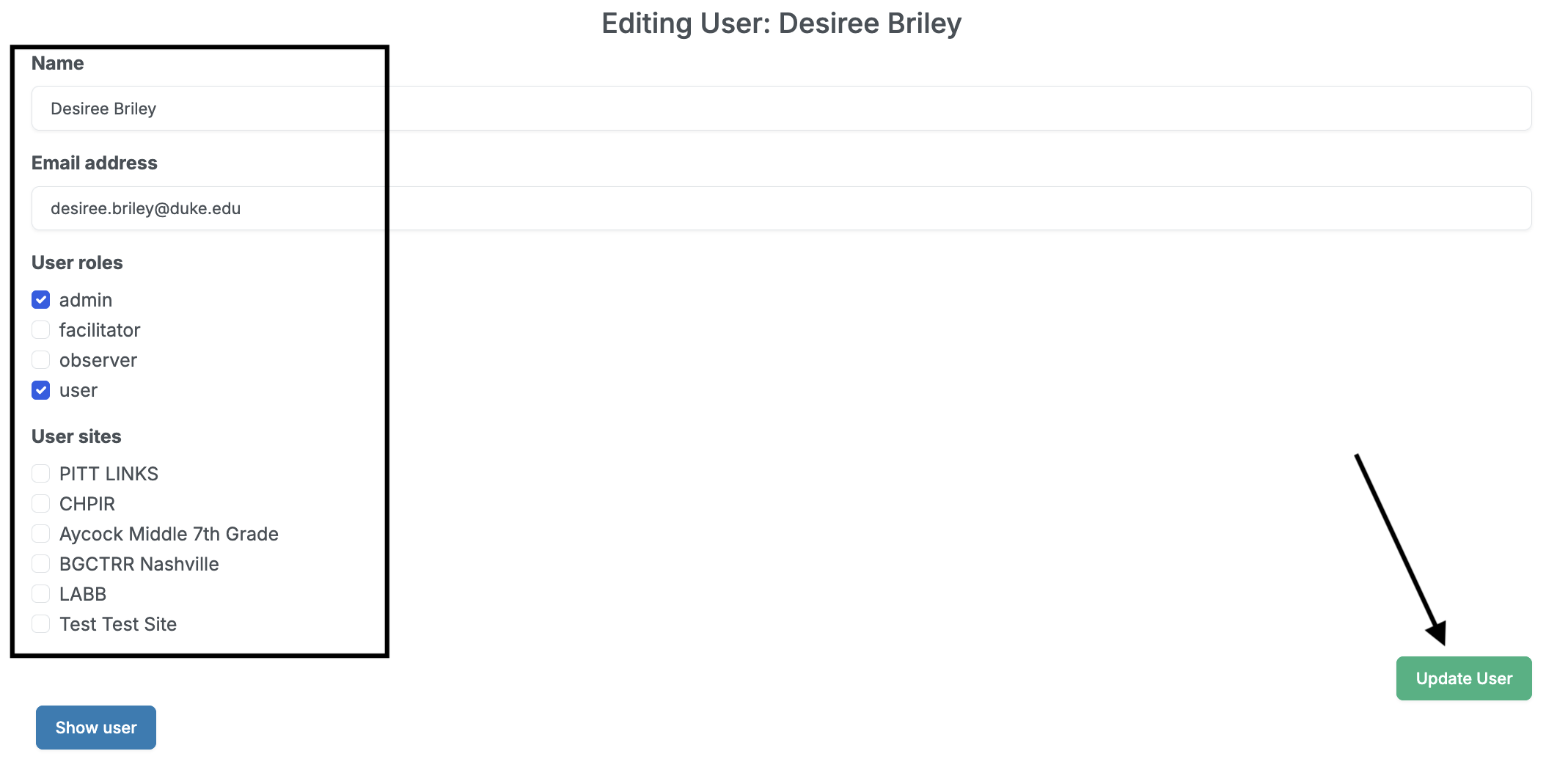
- Change the user’s name, email, role(s) or site(s).
- Click the Update User button.