Sites
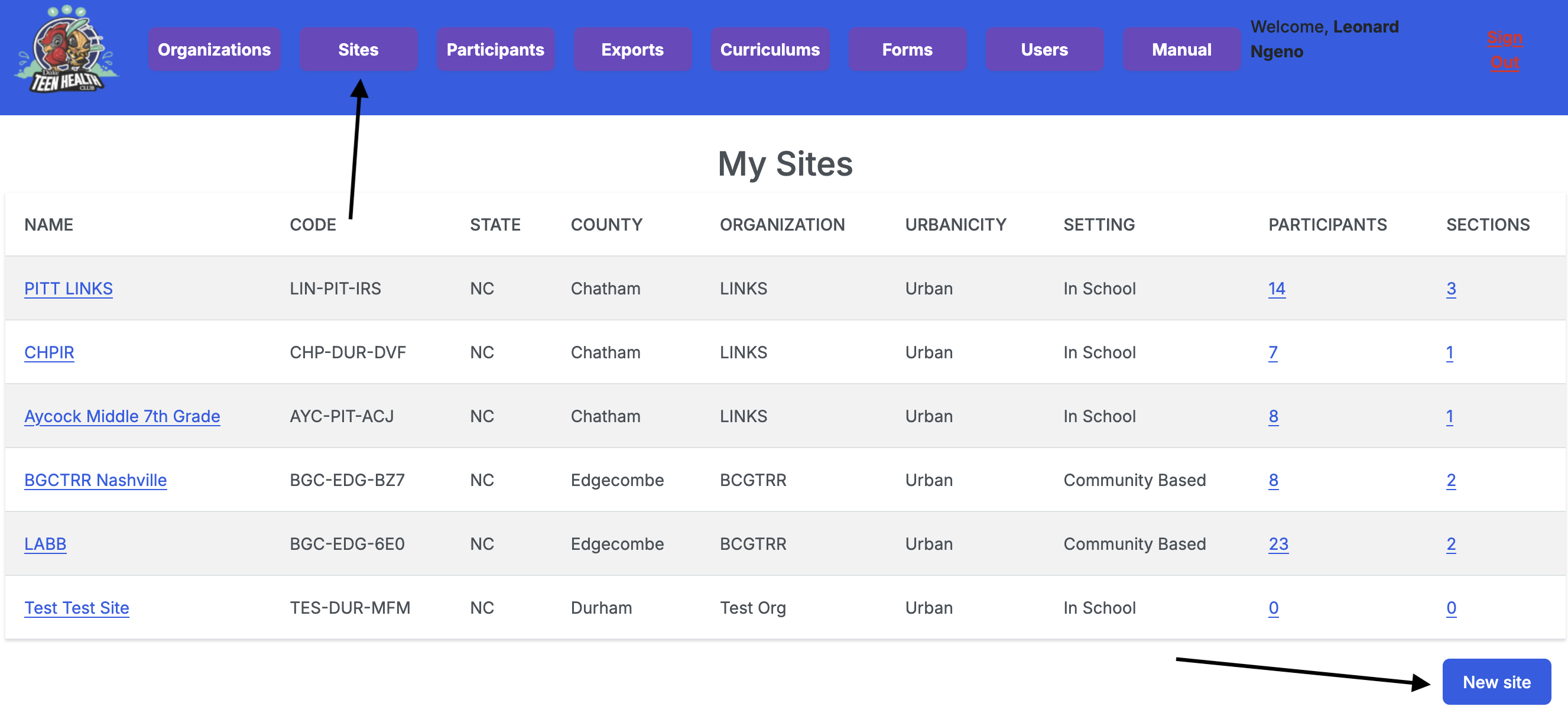
Sites are locations where curriculum implementations take place. Each site is associated with an organization.
A site includes:
- Participants: Individuals, such as youth, being trained on a specific subject.
- Sections: The actual curriculum implementations.
- Users: Facilitators who teach the subject; Observers who observe; Admin users who manage the site; and Users who have a view only role in the application.
Only admin users have the permission to create sites.
To create a site:
- Navigate to the Sites URL using the navigation tab.
- Click on the New site button.
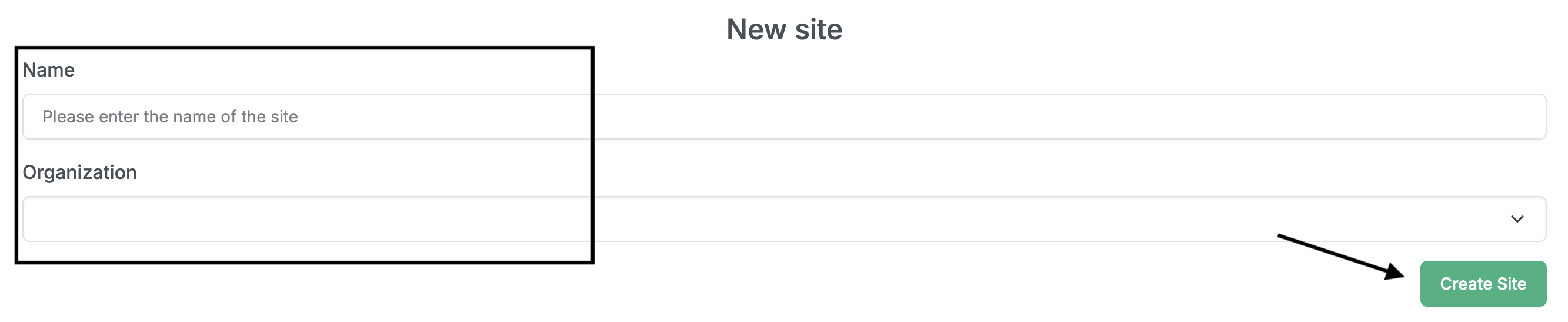
- Provide the site’s name and the organization it belongs to.
- Click the Create Site button.
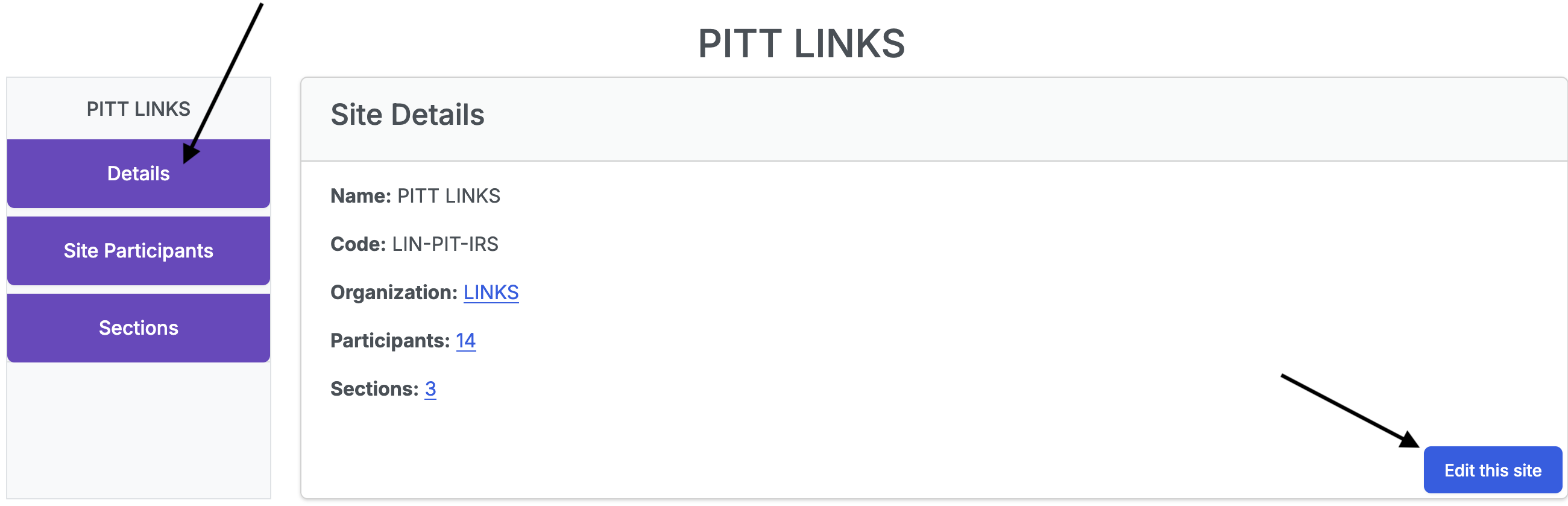
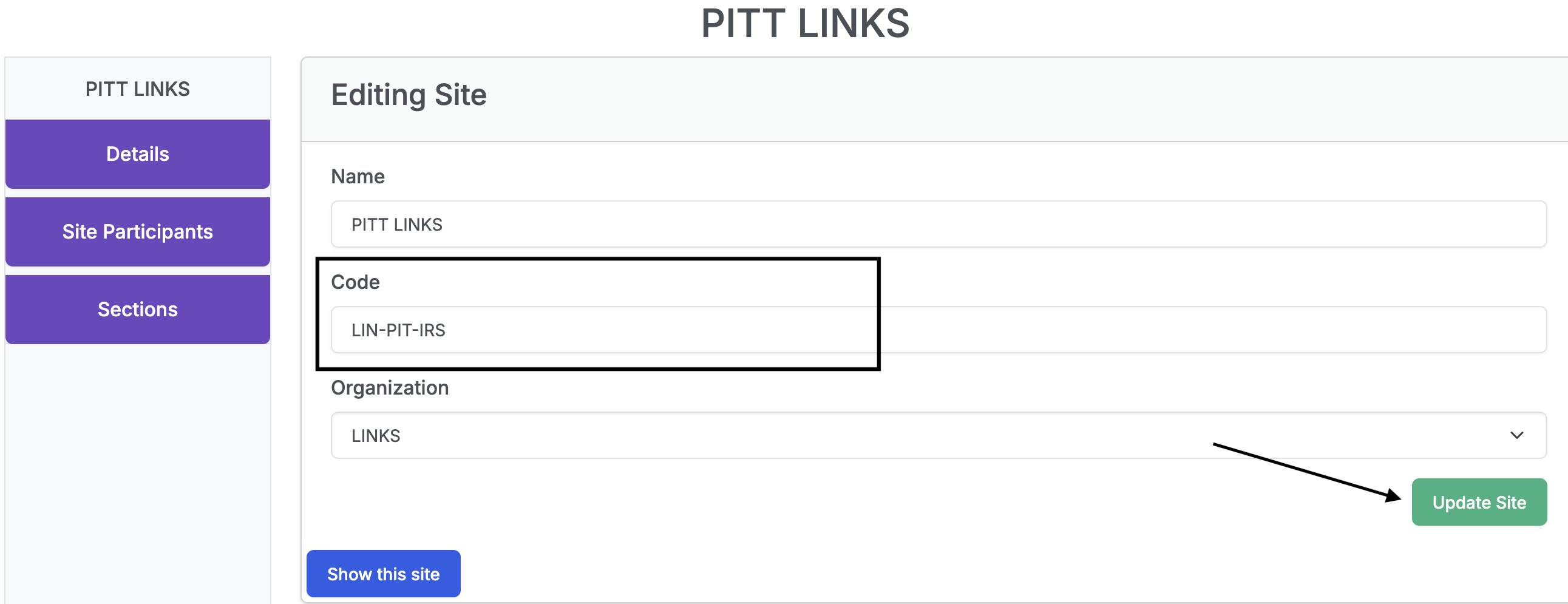
To edit a site, click the Edit this site button on the site’s details page. This will open a form where you can change the site’s name and organization. An extra attribute, Code, is included in the form. This is a unique code that is used to identify the site. Once done editing, click the Update Site button.
To add participants to a site:
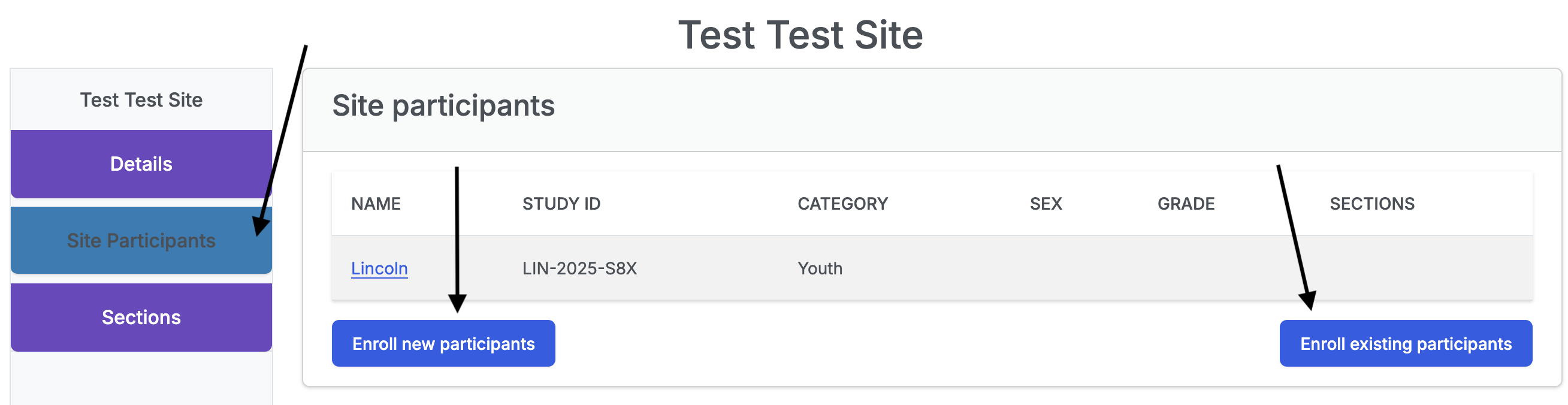
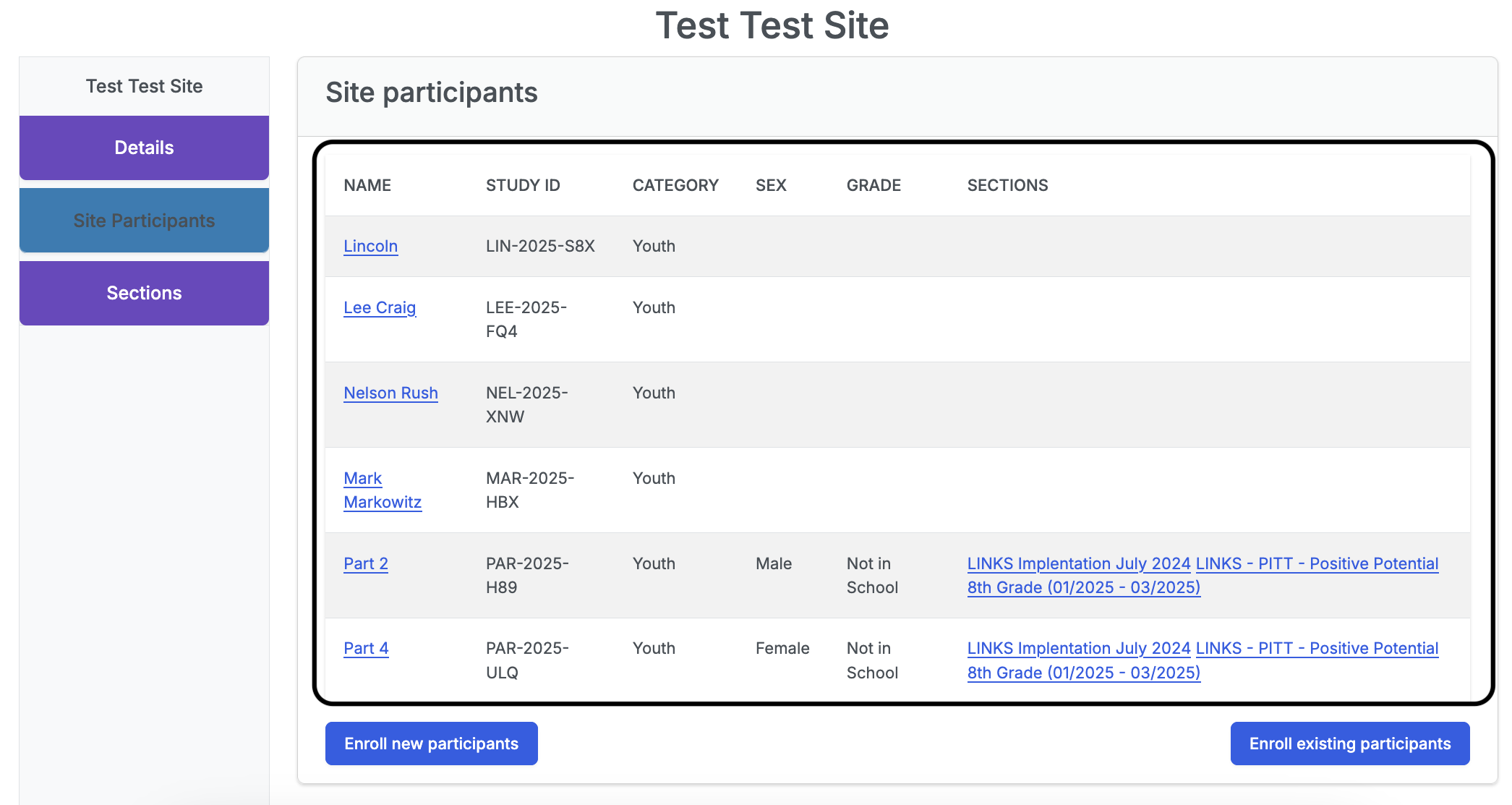
On the site’s page, click on the “Site Participants” tab on the sidebar.
Existing Participants
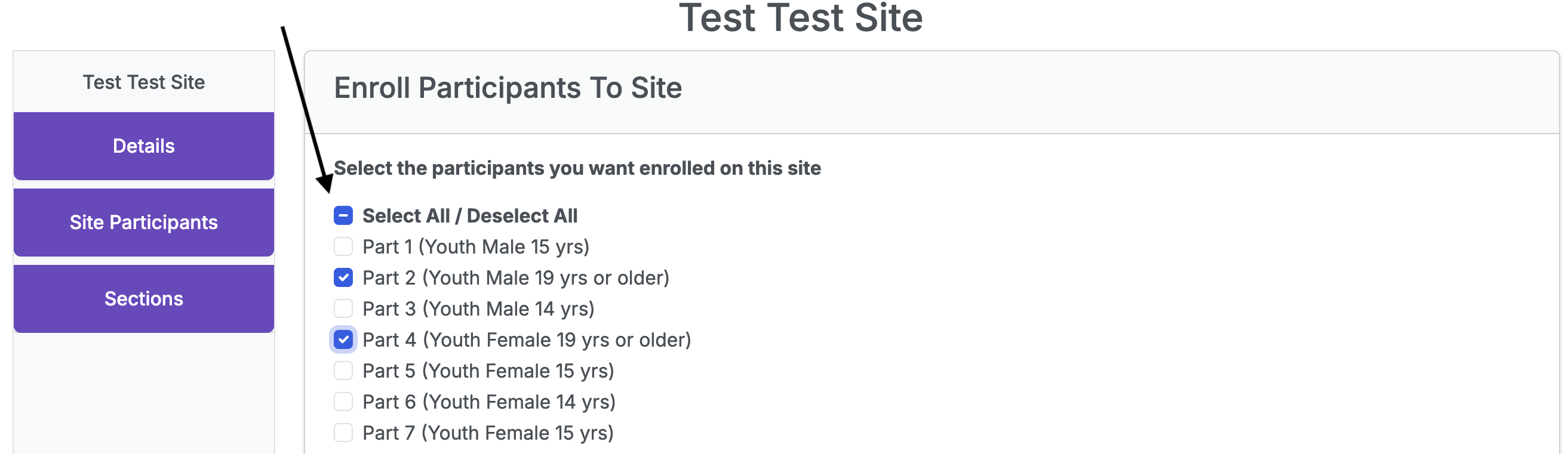
To enroll existing participants to a site, click on the Enroll existing participants button. This will open a form where you can select the participants you want to enroll; unchecked participants will not be enrolled. Click Save to enroll the participants to the site.

New Participants
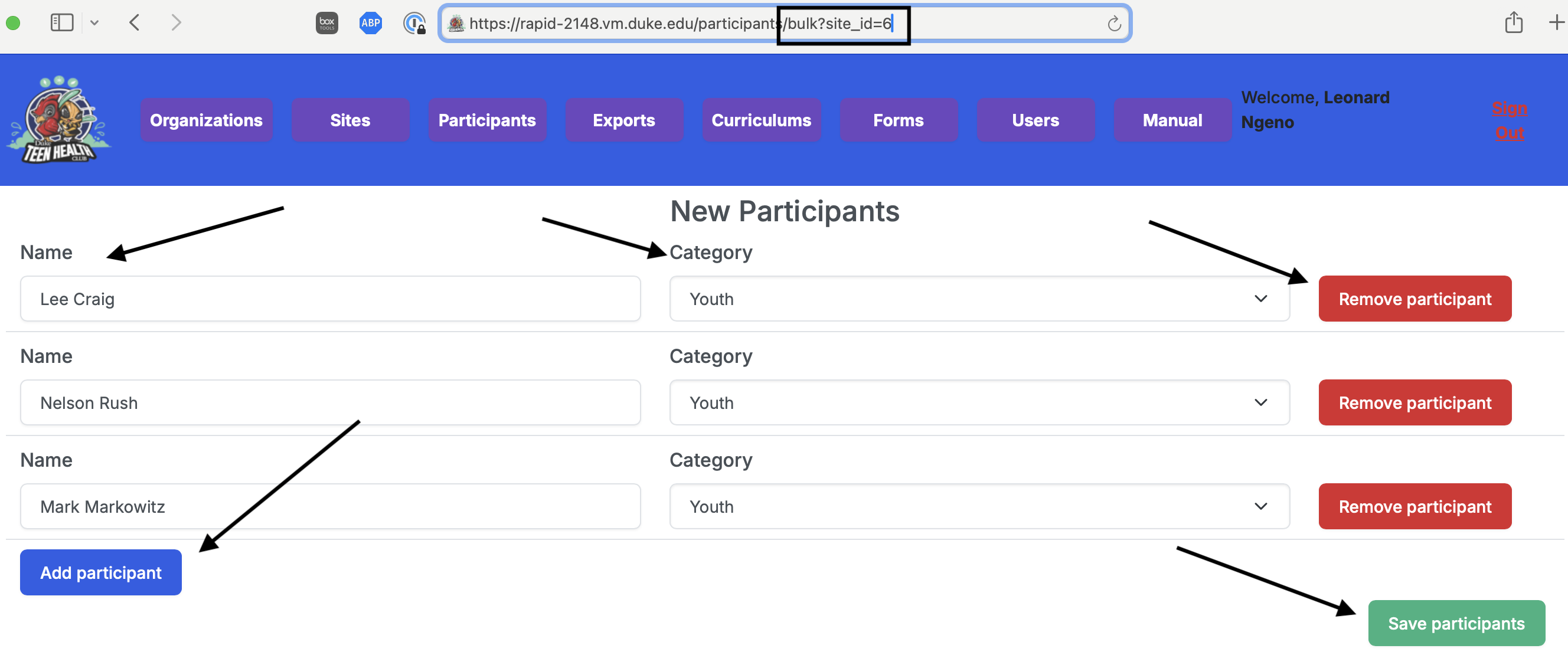
To create new participants and enroll them to a site, click on the Enroll new participants button. This will open a form where you can create multiple new participants. The page’s URL contains a site_id=x parameter, where x is the site’s ID. After creating the participants, click the Save participants button to save the participants and enroll them to the site.
To add sections to a site:
To add a section to a site, click on the “Sections” tab on the sidebar on the site’s page. Then click on “Add new section” button and follow the steps outlined in Sections.
After enrolling participants to a site, you should see a list of the enrolled participants on the site participants page.
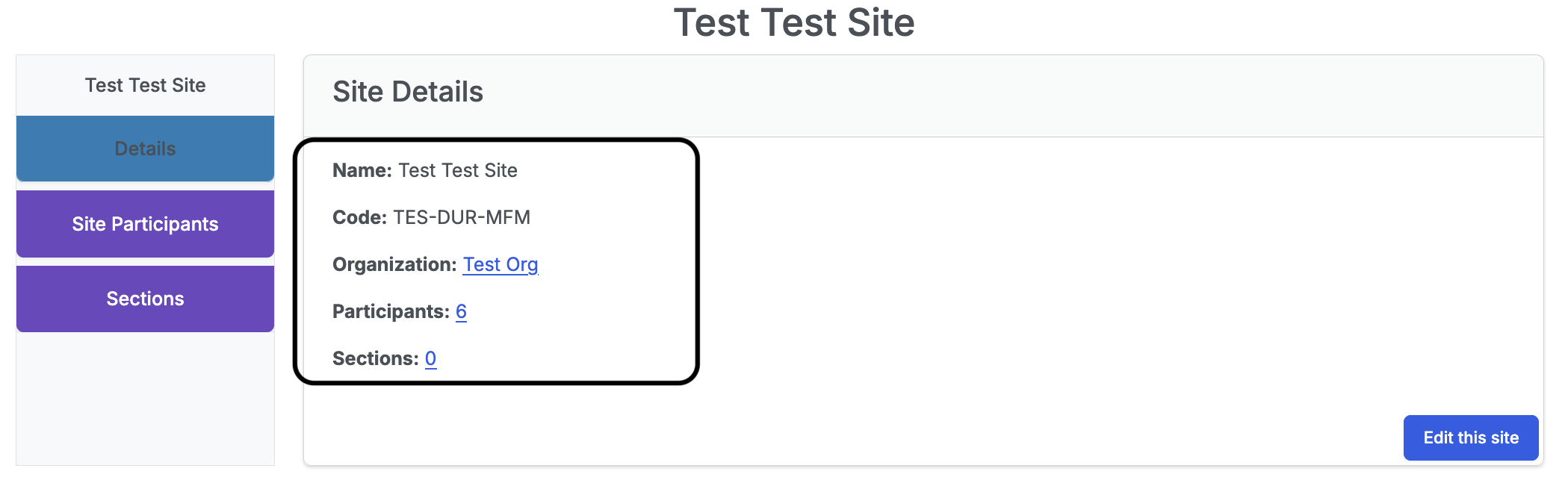
Site Details
To view site details, click on the Details tab on the sidebar on the site’s page. This will display an overview of the site’s:
- Name
- Code
- Organization
- Total number of participants
- Total number of sections