Sessions
A session is the actual class that participants enrolled in a section sit in for training. Each session is associated with a section, a site, and one or more lessons.
NB: Please note the difference between “section” and “session”.
Facilitators, observers, and admin users have the permission to create and edit sessions.
To create a session:
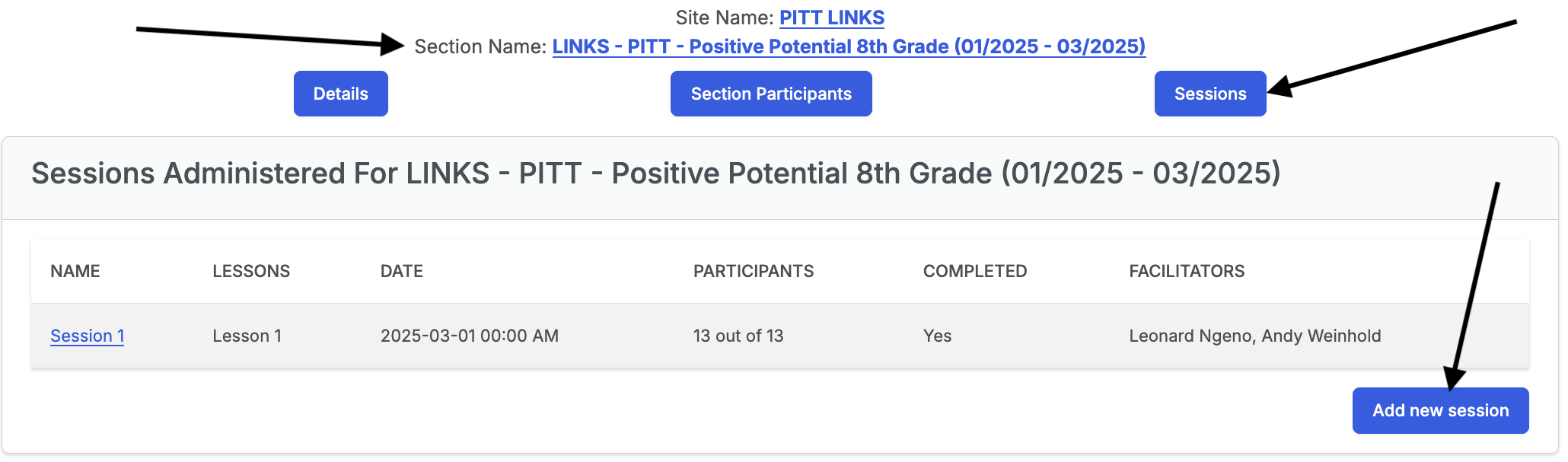
- Navigate to the Section you want to add a session to.
- Click on the Sessions tab and then click on the Add new session button.
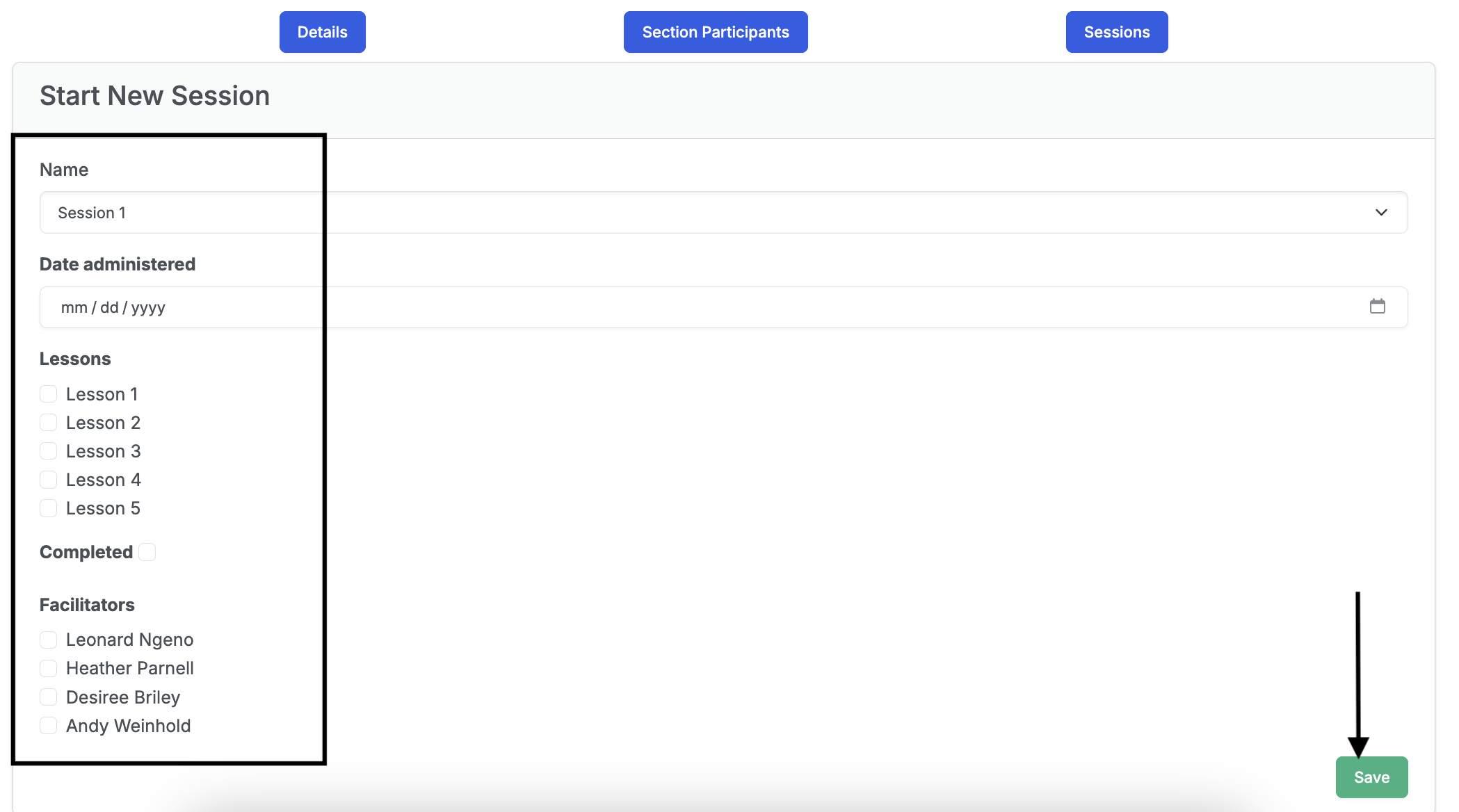
- Select the session’s name from the dropdown, select the date the session is to take place using the calendar, check the lessons that will be taught during the session, and select the name(s) of the facilitator(s) who will be teaching the session. Leave the completed checkbox unchecked until after the session has been completed.
- Click the Save button to create the session.
To edit a session:
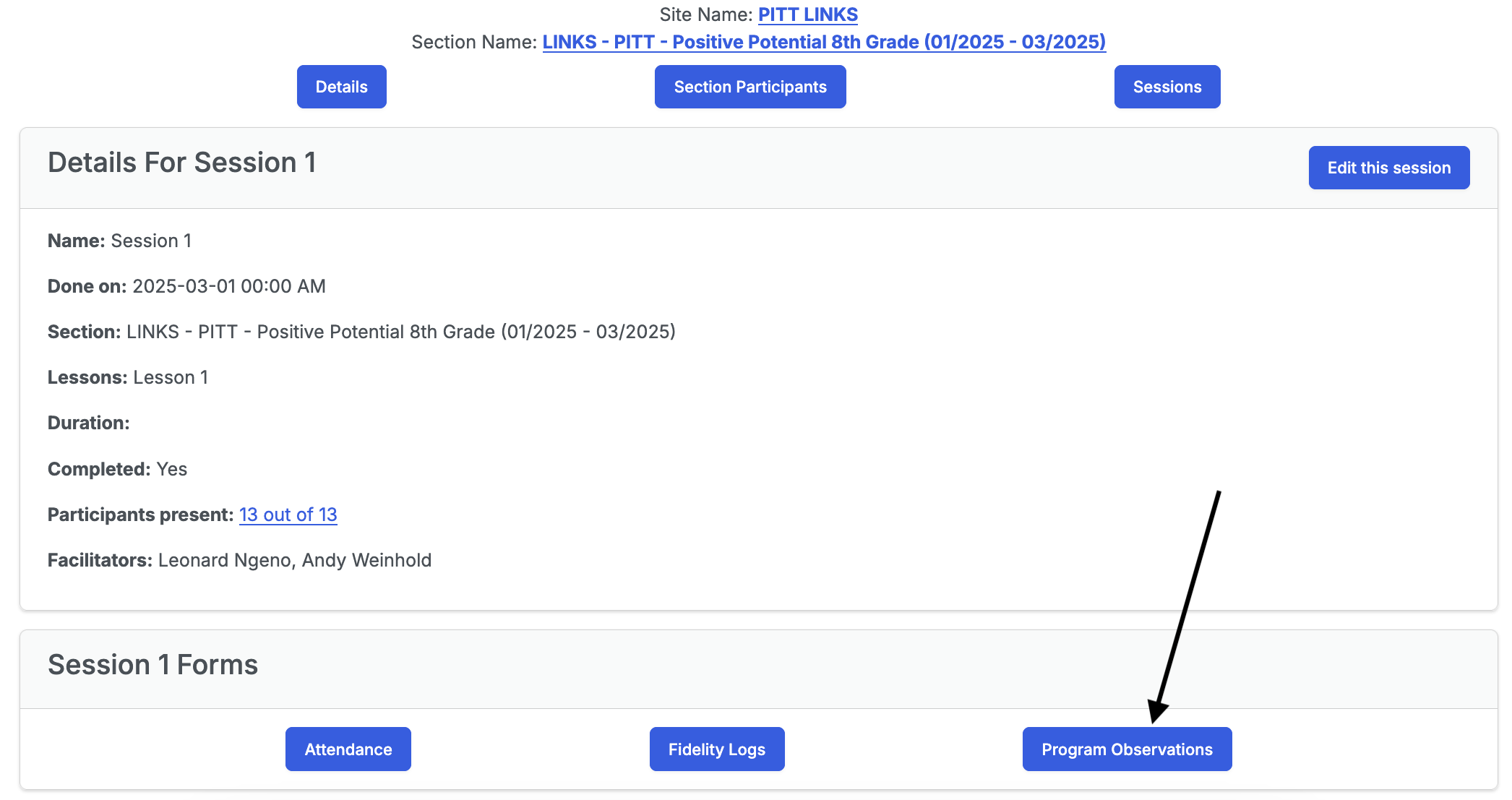
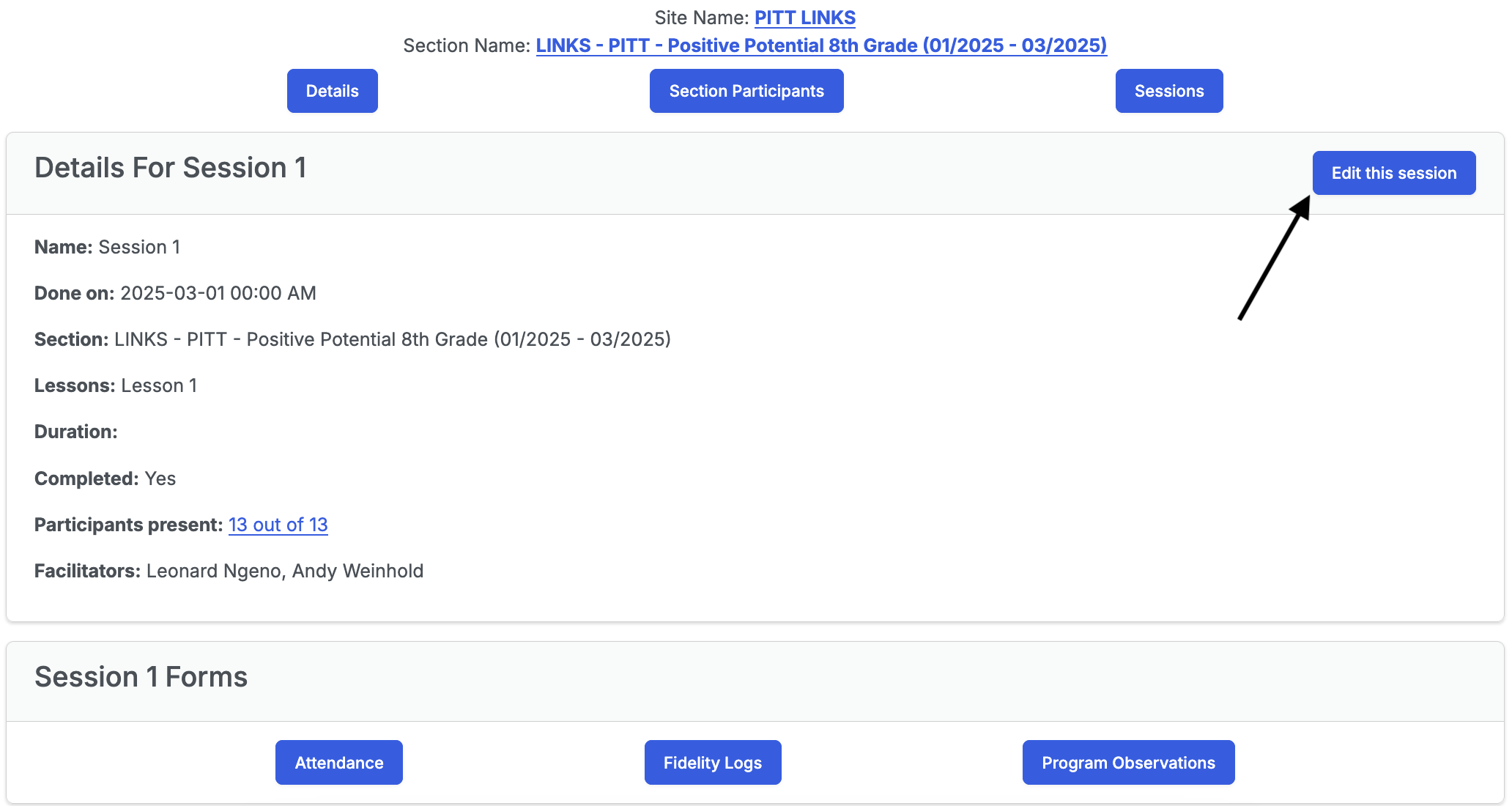
To edit a session, click the Edit this session button on the session’s page. On the form, you should only check the completed checkbox if the session has been completed, and is ready for reporting.
To take attendance for a session:
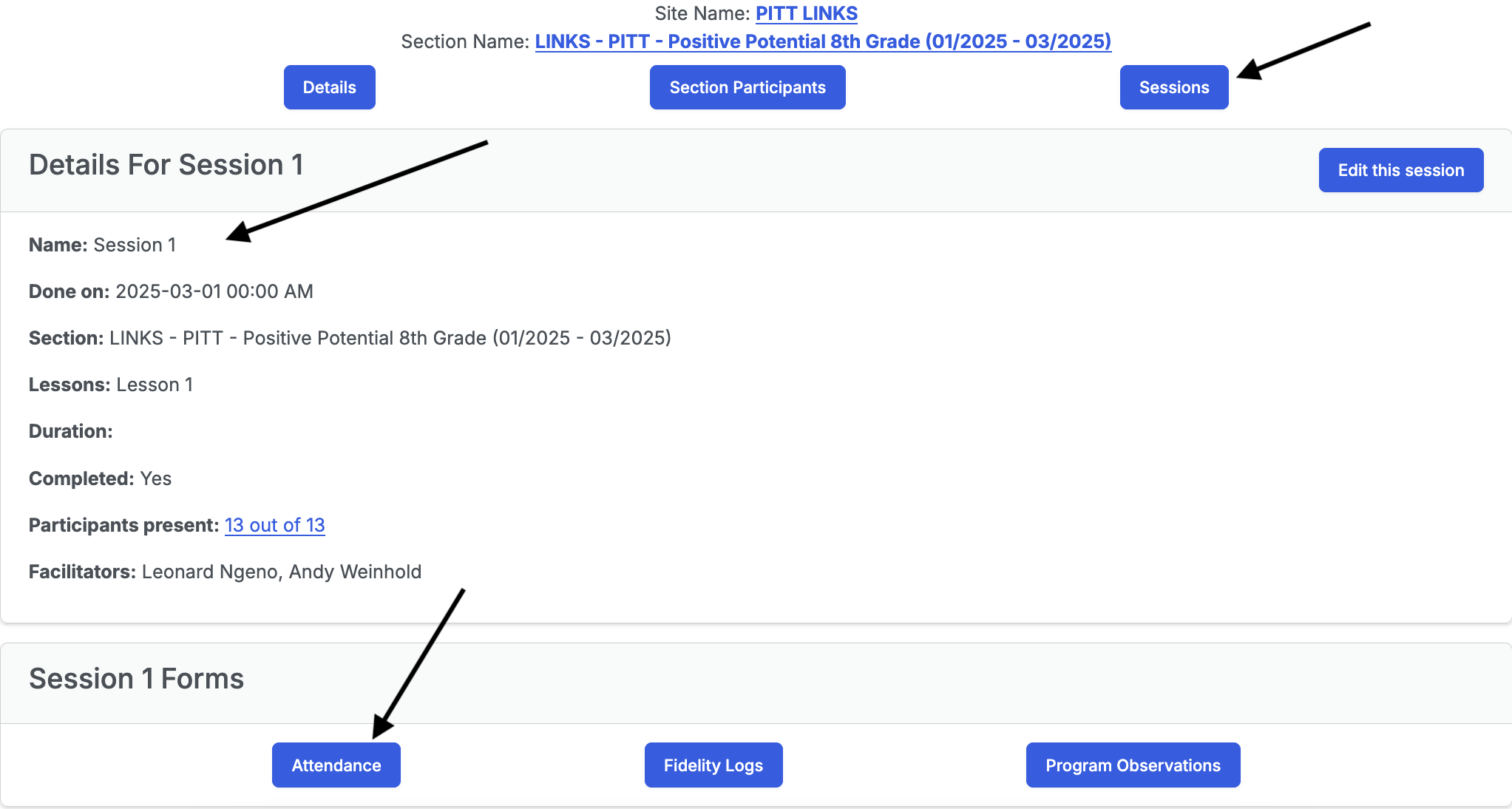
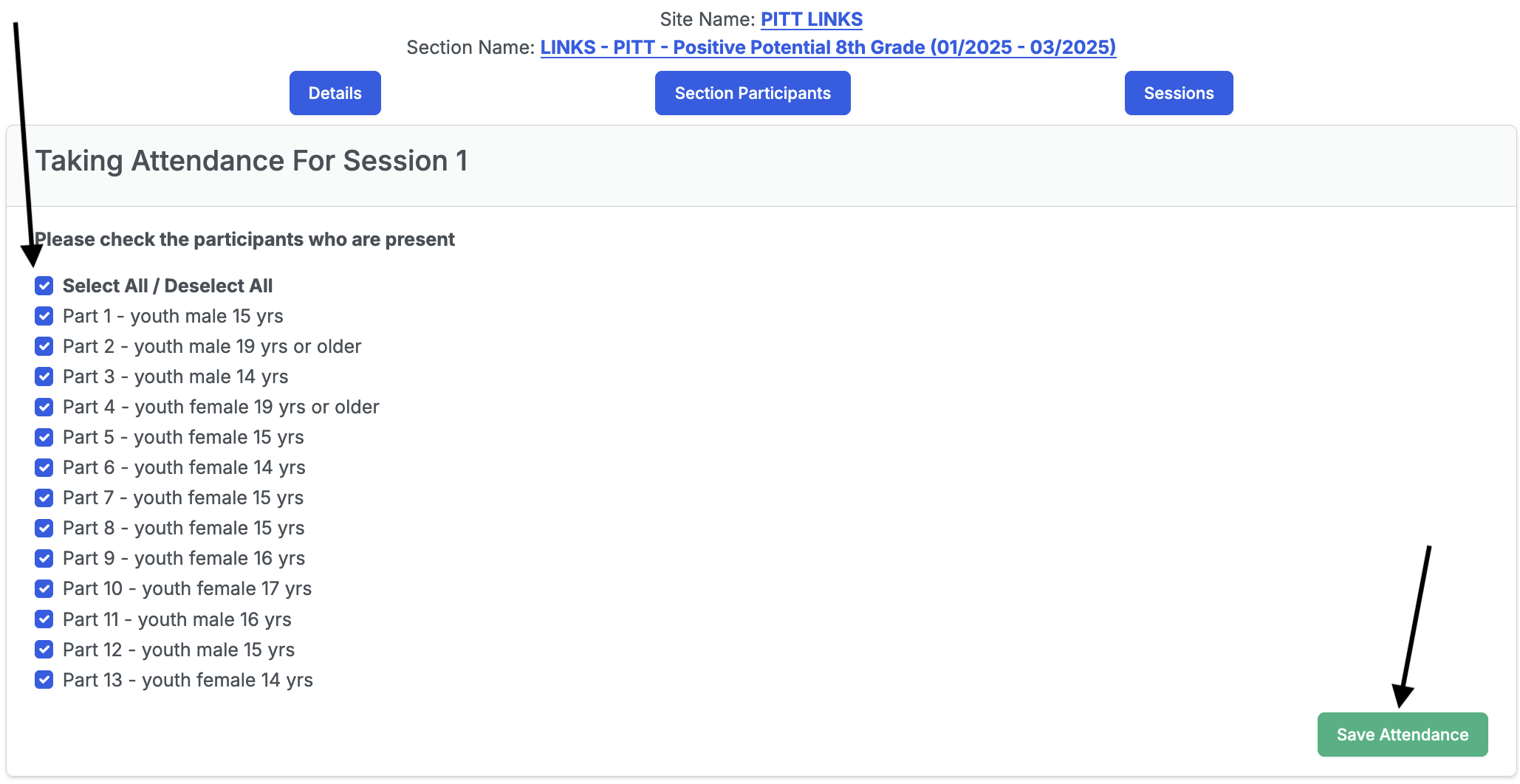
To take attendance for a session, click the Attendance button on the forms card on the session’s page. Select the participants who are present at the session and click the Save Attendance button.
To fill out a fidelity log for a session:
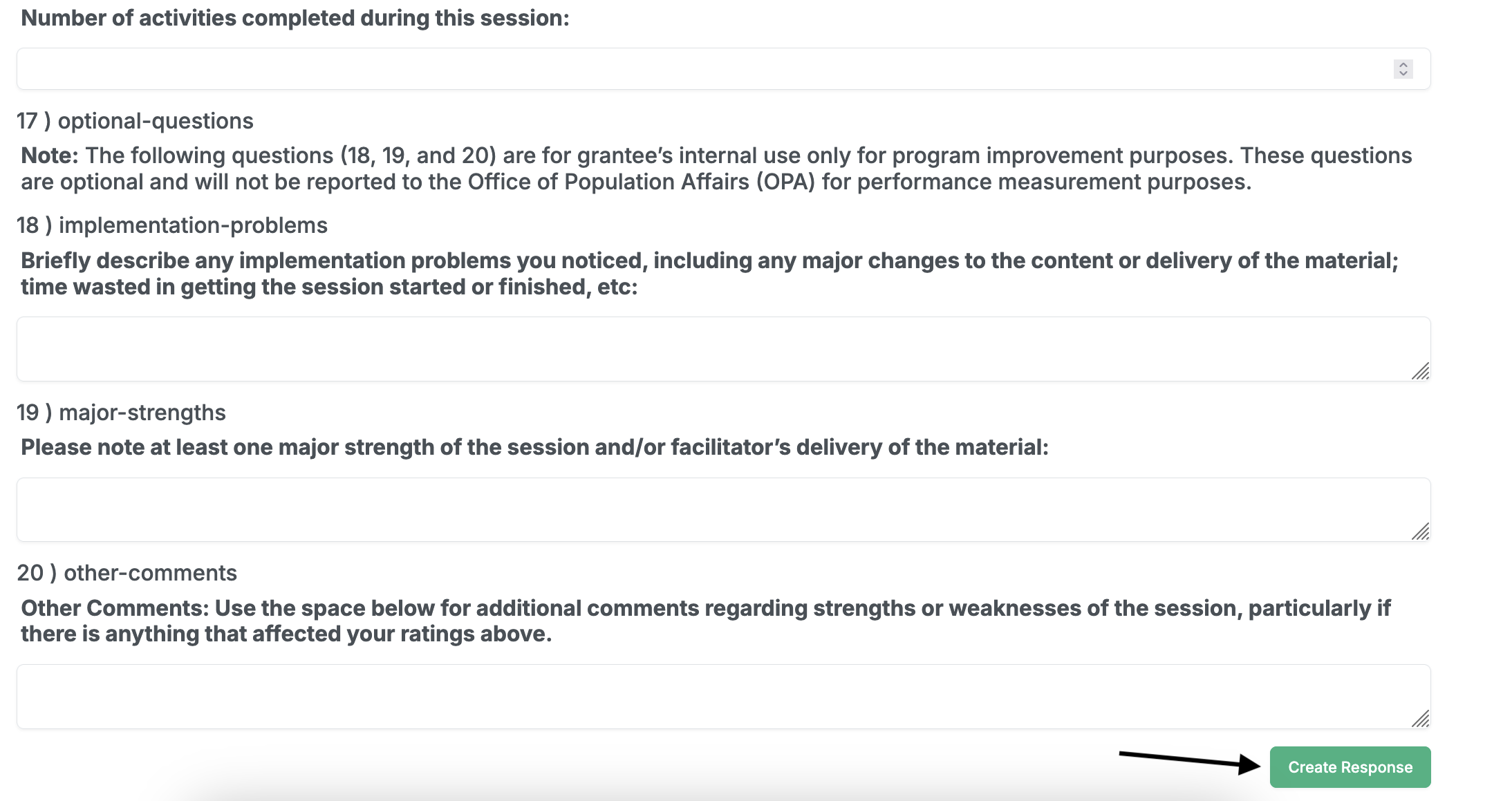
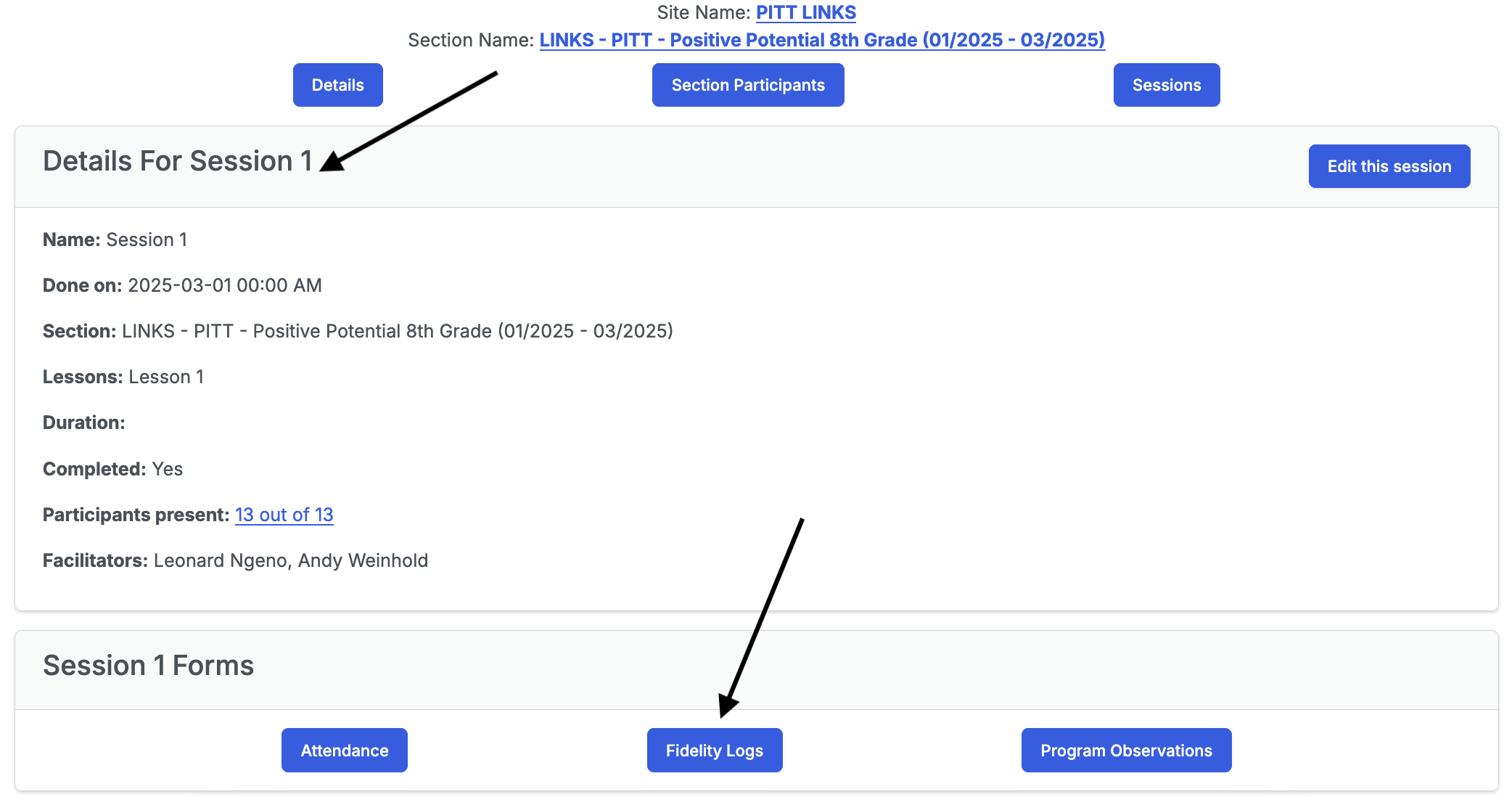
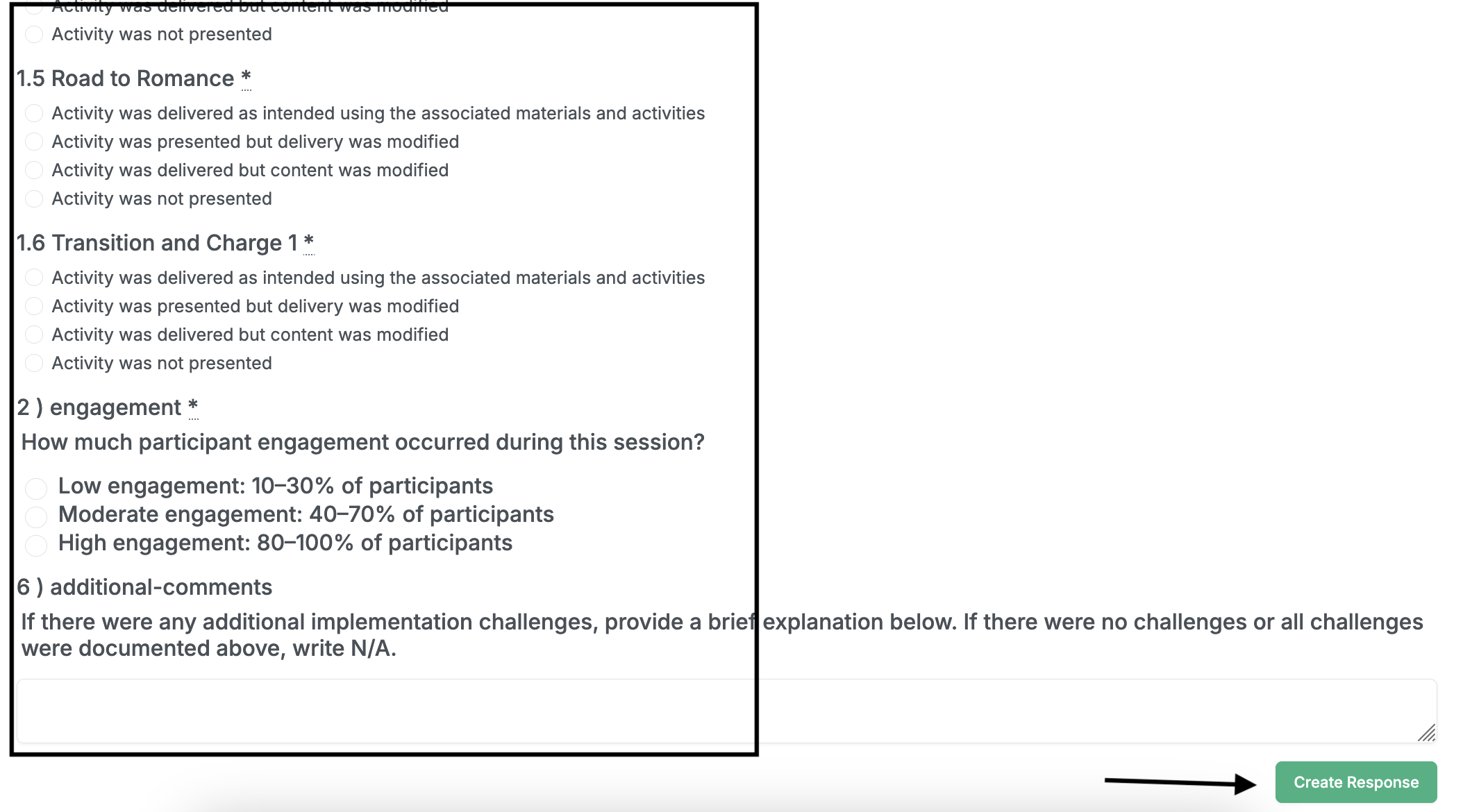
To fill out a fidelity log for a session, click the Fidelity Logs button on the forms card on the session’s page. This opens a page with a list of fidelity logs associated with the session. Click on the New response button to fill out a new fidelity log. Once you have filled out all the fields, click the Create Response button.

To fill out an observation report for a session:
To fill out an observation report for a session, click the Program Observations button on the forms card on the session’s page. This opens a page with a list of observation reports associated with the session. Click on the New response button to fill out a new observation report. Once you have filled out all the fields, click the Create Response button.