Demographics
The Demographics form is used to gather and store participants’ demographic information. Each demographics response is associated with a participant. Additionally, each demographic response can be associated with one or more section(s).
After enrolling participants to a section, the facilitator implementing the section should ensure that the demographics information associated with each participant is upto date.
To create a demographics response:
- Navigate to the Participant you want to create a demographics response for. You can do this using the Participants tab on the navigation bar, or by clicking on the participant’s name on the Site Participants page, or by clicking on the participant’s name on the Section Participants page.
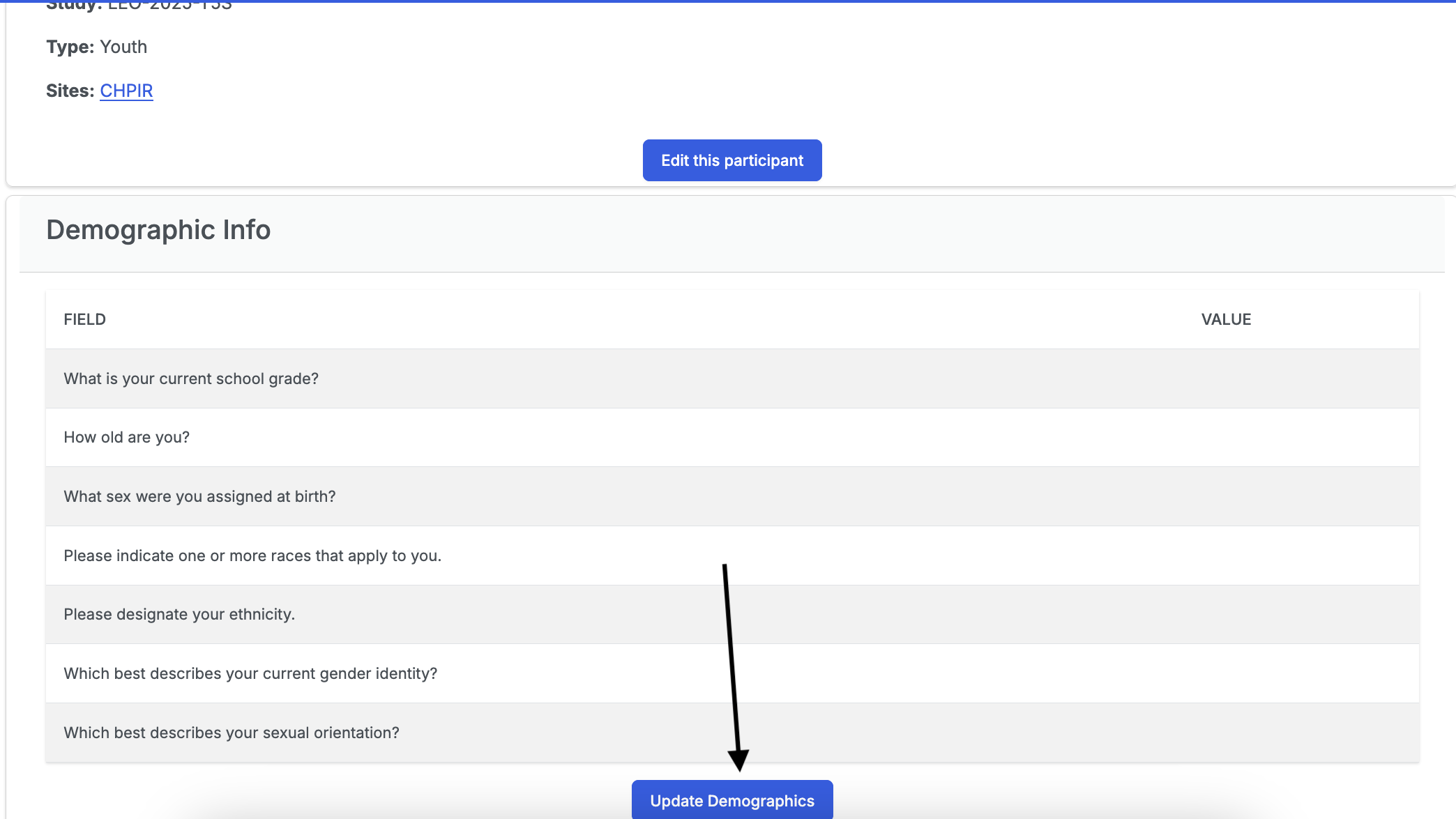
- Click on the Update Demographics button.
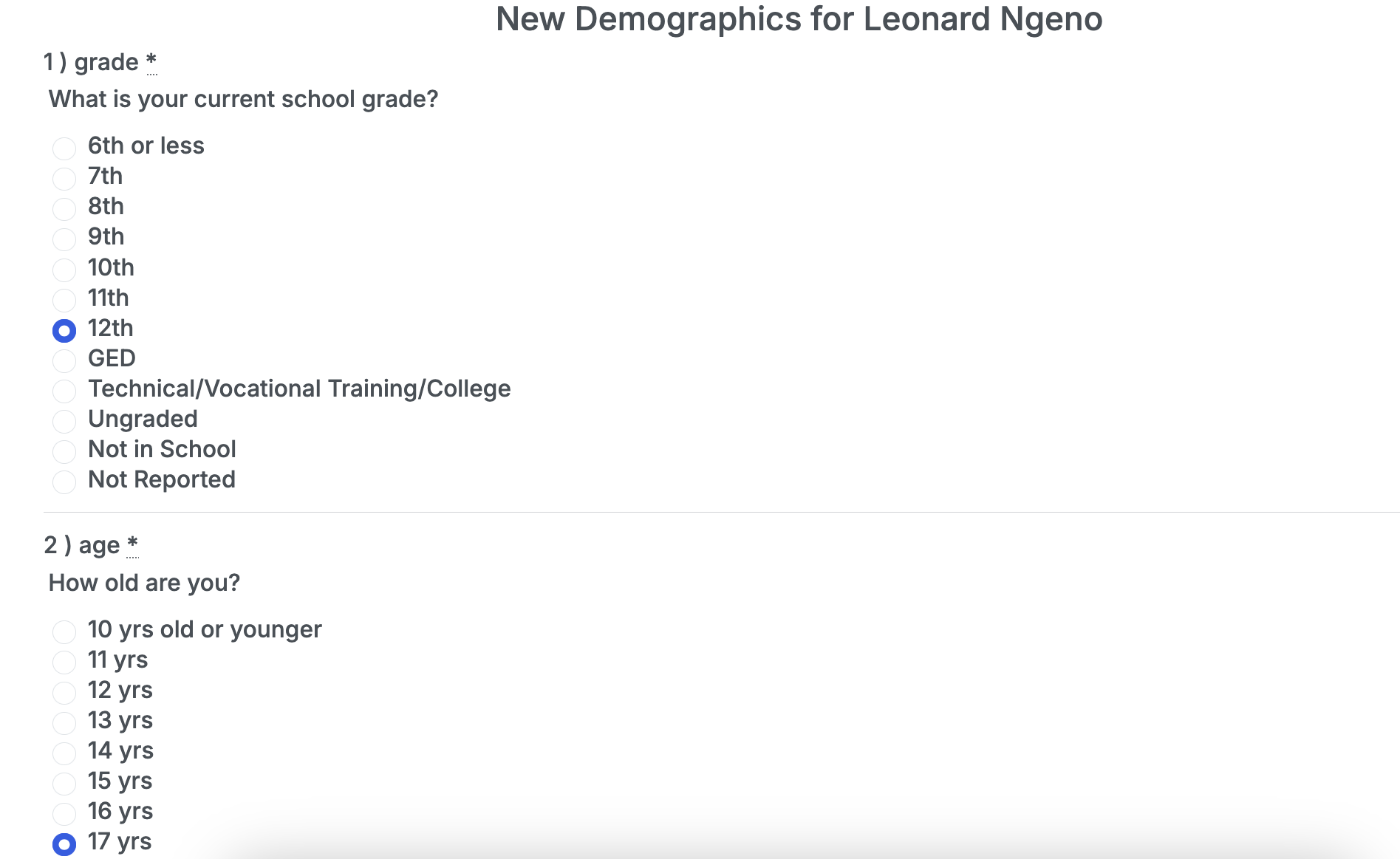
- Fill out the demographics form.
- Click the Create Response button to create the demographics response.

To associate a demographics response with a section:
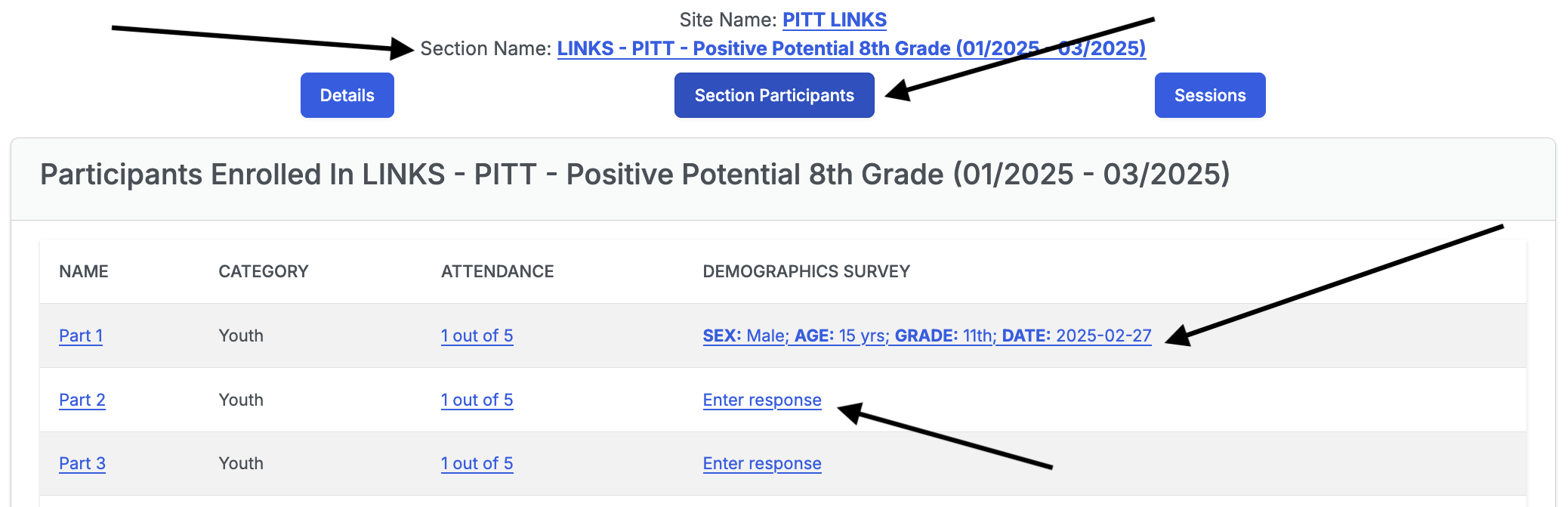
- Navigate to the section’s page.
- Click on the Section Participants tab.
- In the table of participants, there is a Demographics Survey column. If a participant does not have a demographics response associated with the section, it shows a link with the words Enter response. If a participant has a demographics response already associated with the section, it shows a link with some of the demographics information (sex, age, grade, and date of the active demographics information). Click on either link that is shown.
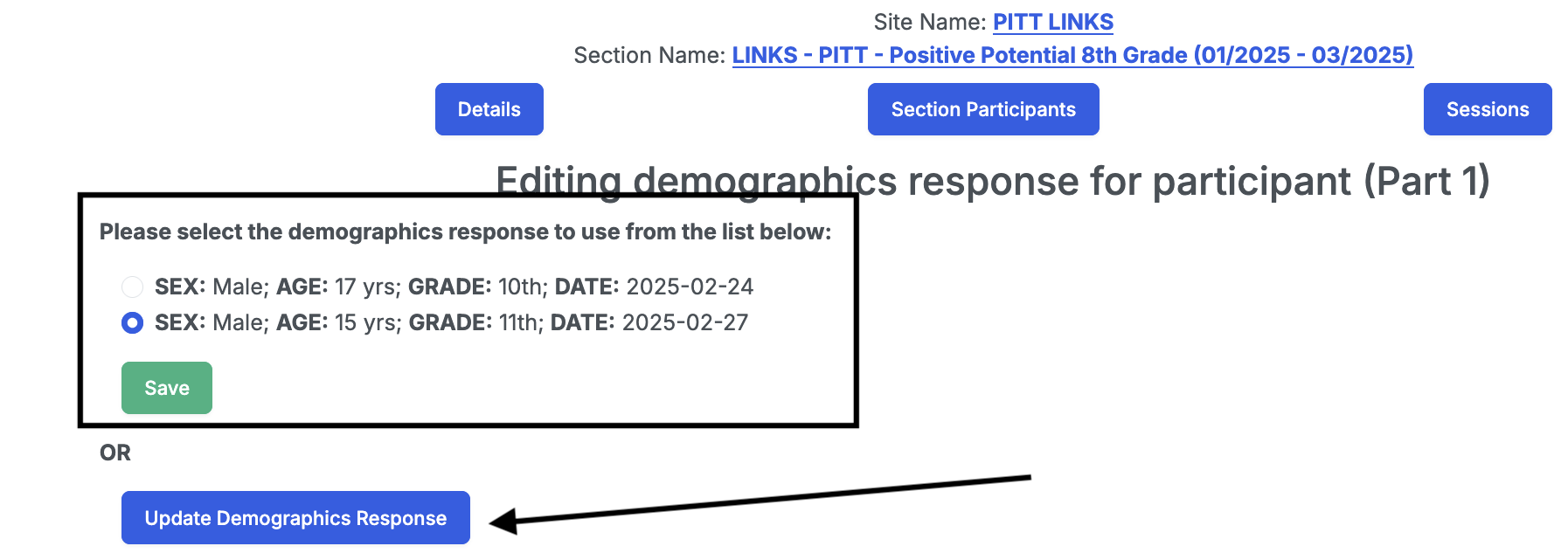
- This will take you to a page where you can either:
- Select from existing demographics responses in the system and click on the Save button, OR
- Click on the Create New Demographics Response button to enter a new set of demographics info.